Horizon Agent fails to install: “system must be rebooted” error

Nothing is more fun than walking into a client site on a Monday morning and something that’s supposed to be easy (installing Horizon Agent in base image) doesn’t work.

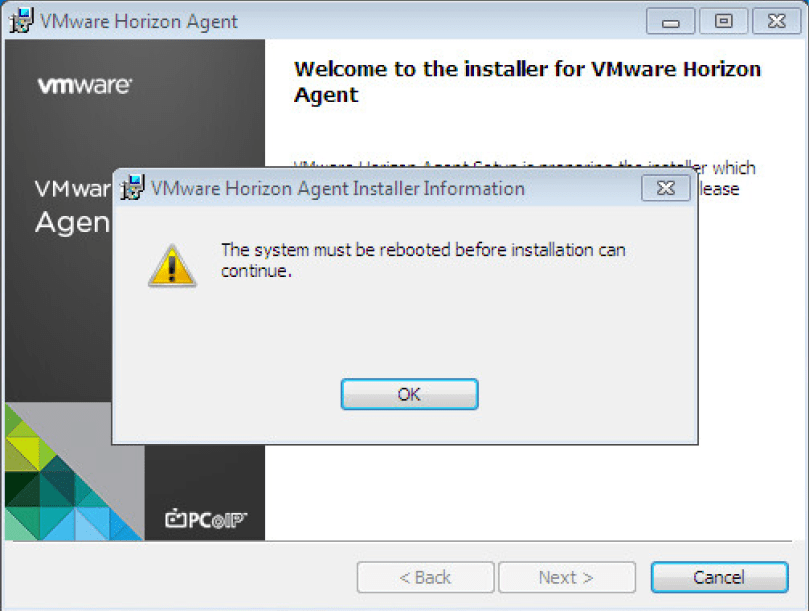
I logged into the Windows 7 virtual desktop image and tried to install the Horizon Agent, however, I received a message stating: “The system must be rebooted before installation can continue.” Seemed simple enough, so I restarted the machine, and tried again. Same error. #facedesk

00.png

Did some digging and found an old KB (1029288). The KB doesn’t say that it is applicable to Horizon View 7.0.x but it solved the issue I was having.

First I tried to uninstall and re-install VMware Tools. No luck.

I went through the registry keys suggested by the aforementioned KB but there weren’t any associated strings associated with the registry keys.

At the very end of the list, two registry keys were listed:

  • HKEY_LOCAL_MACHINE\Software\Microsoft\Windows\CurrentVersion\RunOnce\
  • HKEY_LOCAL_MACHINE\Software\Microsoft\Windows\CurrentVersion\RunOnceEx\

There were values located in HKLM\Software\Microsoft\Windows\CurrentVersion\RunOnce, so I deleted all the values, rebooted the machine.

Voilà! I was finally able to get the Horizon Agent to install so I could proceed with my day. It appeared that there was a previously failed installation that was preventing the Horizon Agent from launching its own installer.

Horizon 7 Instant Clones – Folder Structure

When provisioning Horizon 7 Instant Clones, you may have noticed some new folders that were created in the VM and Template view in the vSphere Web Client.

Screen Shot 2016-12-19 at 9.37.17 AM.png

Each of these folders has a specific purpose for Instant Clones:

  • ClonePrepInternalTemplateFolder
    • cp-template-xxxx –  Virtual machine that is a template used to create Instant Clones; this is created from the master image.
  • ClonePrepParentVmFolder
    • cp-parent-xxxx – These virtual machines exist in a 1:1 relationship to the number of ESXi hosts in the cluster. I have a four node cluster, therefore I have 4 clone prep parent virtual machines. Each ESXi host has one of these powered on and in memory in order to provision the Instant Clone VMs.
  • ClonePrepReplicaVmFolder
    • cp-replica-xxxx – This virtual machine is used to create the clone prep parent virtual machines. It will be also used as necessary to provision additional clone prep parent virtual machines.
  • ClonePrepResyncVmFolder
    • If the Instant Clones are updated with a new image, a virtual machine will be created here for staging purposes.

Nutanix Vocabulary

This will be the first post of a series —as I am going to post my study notes for NPP as a general reference and a study tool for others. We’ll start with the basics, Nutanix vocabulary.

The Nutanix Xtereme Computing Platform (XCP) is a converged, scale-out compute and storage system that is purpose built to host and store virtual machines.

XCP is comprised of two components:

Acropolis – data plane made up of App Mobility Fabric (AMF), Distributed Storage Fabric (DSF) and hypervisor integration.

  • App Mobility Fabric (AMF) – logical construct built into Nutting solutions that allows application and data to freely move between environments. The AMF abstracts the workloads (Containers, VMs, etc.) from the hypervisor, which is what provides this ability to easily move applications and datas around.
  • Distributed Storage Fabric (DSF)  – distributed system that pool storage resources and provides storage platform capabilities such as snapshots, disaster recovery, compression, erasure coding, and more. Nodes work together across a 10 GbE network to form a Nutanix cluster and the DSF.
  • Hypervisor –  ESXi, Hyper-V, and Acropolis Hypervisor (AHV)

PRISM – provides management UI for administrators to configure and monitor the cluster. This web interface also provides access to REST APIs and the nCLI.

A few more terms to be familiar with (since I used them in the section above!):

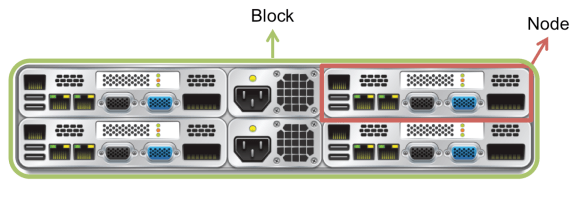
Node – the foundational unit for a Nutanix cluster. Each node runs a standard hypervisor (ESXi, Hyper-V, and AHV) contains processors, memory, network interfaces, and local storage (SSDs and HDDs).

Block – a Nutanix rackable unit containing up to four nodes

Nutanix Node.png

Cluster – set of Nutanix blocks and nodes that forms the Acropolis Distributed Storage Fabric (DSF). A cluster must contain a minimum of three nodes to operate.

The three objects that allow the Nutanix platform to manage storage are:

Storage Pool – is a group of physical storage devices, including SSD and HDD devices, for the cluster. The storage pool can span multiple Nutanix nodes and is expanded as the cluster scales.

  • It’s recommended that a single storage pool be created to manage all physical disks within the cluster.

Container – is a logical segmentation of the storage pool and contains a group of VMs or files (vDisks). Containers are usually mapped to hosts as shared storage in the form of an NFS datastore or an SMB share.

vDisk – is a subset of available storage within a container that provides storage to virtual machines. If the container is mounted as an NFS volume, then the creation and management of vDisks within that container is handled automatically by the cluster. Any file over 512 KB is a vDisk.

nutanix bible.png

(Image above taken from nutanixbible.com)

Some more storage terms:

Datastore – logical container for files necessary for VM operations.

Storage Tiers – utilize MapReduce tiering technology to ensure that data is intelligently placed in the optimal storage tier —flash or HDD —to yield the fastest possible performance.

The general process for provisioning storage is as follows:

  1. Create a storage pool that contains all physical disks in the cluster.
  2. Create a container that uses all of the available storage capacity in the storage pool.
  3. Mount the container as a datastore.


More to come over the next few weeks!

Learning from Failure – My Path to VCDX (Part II)

ICYMI, you can find Part I here.

Second Attempt – Pass!

The important decision to make whether I should wait or reapply immediately. Brett and I talked a lot about this over the two days following our results. I decided that I would shore up the gaps in our design (primarily our DR plan and the capacity planning) and reapply for the November defense. The deadline for application was Aug 24…that meant I had slightly less than two weeks to edit the design and reapply. Brett decided to wait because he had a lot of work obligations for the second half of the year. Per policy, VCDX partners can defend separately (however, must apply at the same time) but must be within two defenses of each other.

In case you did not know, a second defense on the same design requires a change log to be created. Check out Lior Kamrat’s blog post here.

In hindsight, it was a crazy move to reapply so quickly. Between application and defense in November, I had VMworld US, two Europe trips, and VMworld EU…translating to not a lot of time to prepare. But I felt like I had a better idea of what I needed to do and what the panelists wanted to see.

I talked to many VCDX candidates and VCDXs while at VMworld US and VMworld EU. I listened to all their advice and how they prepared. I’m grateful for the time that so many spent with me.

This time I decided to prepare differently. I was going to do it my way. I went into a little bit of an isolation; I didn’t tweet about it. I didn’t work with as many people, I kept my group small. I just focused on working with my study group. I didn’t do as many mocks for myself (I think only two or three), but I participated in quite a few mocks as a “panelist” for others. I created flashcards for questions I thought panelists would ask. And I completely rebuilt my slide deck so that the intro (or main deck) would talk more to my requirements and constraints, as well as specifically highlight my design decisions.

I went up to Palo Alto a few days before my defense to do some mocks and study with a member of my study group. Unluckily, my defense was the morning after the US election so I stayed up later than I had planned. I went over my slide deck, slide-by-slide, with someone in my study group that night. I woke up early, flipped through my main deck one last time, and then headed to VMware’s campus. While I waited for my panel, I reviewed through my Quizlet sets one more time.

Honestly, I wasn’t sure how I did. I felt more comfortable in the design scenario because I did what I normally do with a client—I wasn’t so focused on following someone else’s template. In the defense section, I felt I did ok but I could tell I wasn’t doing well explaining my networking. I got a little ramble-y in that area. I think I may have made up for that in the scenario. Either way, I was convinced I’d failed again.

To VMware’s credit, they cranked out our results much quicker than in July. I defended on Wednesday and found out my results the following Tuesday. I passed! I’m officially #243.

giphy1

My Thoughts  

  • Make sure your friends and family realize how much time you’ll be dedicating to VCDX.
  • No (wo)man is an island. Surround yourself with a community of others doing the same.
  • Join a study group. Gregg Robertson runs a great one on Google+ and Slack. Join it! But then find a smaller group who are preparing to defend around the same time as you.
  • Have someone (or multiple people) review your design as you are writing it.
  • Review your design and have someone else review your design once submitted. There will be gaps and errors—-find them! Figure out how to address them in your defense.
  • Do mocks! Do more mocks!!
  • Create backup slides in your PPT for reference, but do not be afraid to whiteboard in your defense.
  • Be familiar with your slide deck. You don’t want to waste time fumbling around looking for a slide in the defense. Work out those kinks in mocks.

But you should do what feels right to you. Don’t focus on the techniques that helped others. Don’t feel the need to follow someone else’s template. Achieve VCDX your own way. Grant Orchard (#233) just wrote a brilliant post along the same lines, read it here.

Obligatory Thank You(s) 

First and foremost, I would like to thank my VCDX partner, Brett Guarino, and his wife, Leann, for putting up with us working weekends and late nights and letting me stay all of those weeks in their home in Raleigh while we worked. Thank you to Brett’s managers at VMware for letting him dedicate time to this project. I can’t wait until he gets his number.

And a massive thank you to:

Lastly, Chris Williams, thank you so much for being the only person who responded with notes when we sent our design out for review. Your time reading our design is greatly appreciated and your notes were invaluable.

Learning from Failure – My Path to VCDX (Part I)

I’m excited to announce that I have been awarded the title of VMware Certified Design Expert (VCDX) #243. If you are unfamiliar with the VCDX program, you can find more information here.

My journey towards VCDX began a little over three years ago. I had successfully passed the VCAP5-DCA (May 2013) and VCAP5-DCD (Sept 2013) exams and was trying to figure out what was next for me.

I talked to my friend and former business partner, Brett Guarino, about it several times throughout the next few weeks. Together, we decided to partner up, write a design, and chase this certification together. In October 2013, I wrote an article titled “Why I am Pursuing the VCDX” for VMware Press, publicly announcing my pursuit (that way I could be held accountable). I had no idea what a long road this would be.

giphy

Writing the Design

This part took us forever. I think we underestimated the length of time it would take and it became increasingly difficult to prioritize VCDX time over work. This is primarily because Brett and I were both self-employed when we set out on this endeavor. So for me, taking time off to work on VCDX meant no money coming in for that given time period.

We kicked around a few different designs we worked on, considered doing something completely fictional, but ultimately we landed on a lab infrastructure design we had worked on together. Brett and I selected this design because it was very unique (leverages nested virtualization) but was still fairly simple.

By December 2014 we had put together our first draft of a design document and had created a plethora of diagrams and tables. But…around that time Brett accepted a position with VMware and was trying to settle into this new role. I was still self-employed and had landed a few gigs that were keeping me traveling overseas regularly. Our VCDX design was put on back burner…and it sat there for about a year.

Around Christmas 2015, Brett and I had a frank conversation regarding our pursuit of VCDX. When I had time to work, he was busy; when he was free, I was busy or out of the country. We tried to divide up the sections and conquer them separately but when we weren’t together we found that it was easy to prioritize something else over our design. It was time for us to ‘shit or get off the pot.’ Either we would both dedicate time working on this or we needed to pursue VCDX individually. We decided to give it one more shot together.

I had looked at the VCDX schedule and found that there was a submission deadline in May 2016 to defend in Palo Alto in July 2016. We created a schedule and got to work. We both took off for much of April to sit down and hammer out the rest of the design document together. Within about 2 weeks we had the design document finished and sent to a reviewer. From there, we split up the remaining work of completing the supplementary documentation (installation guide, implementation guide, testing and validation guide, and standard operating procedures). I think we underestimated the amount of time that the supplemental documentation would take.

With the deadline fast approaching, I found myself on a plane to Tel Aviv the day before the submission deadline. I was furiously making last minute adjustments to our documents, re-reading, editing, and trying to finish filling out the application.

We submitted our applications, and then had a drink to celebrate. Idiotically we thought the hard part was finished…we were wrong. Turns out preparing for the defense is far more stressful than writing the design.

First Attempt – Fail!

Once our applications were submitted, it came time to work on our PPT and start to participate in mocks. We should have started immediately after submitting our applications but we didn’t because we both had vacation plans for the end of May. And honestly, we really didn’t think we’d get accepted. We did. I took a week off in June and together we worked on our PPT and did some mocks for the design scenario portion of the design defense.

We both took off work for the two weeks leading up to our defense, crammed, and worked on perfecting our PPT. Through mocks we found quite a few gaps in our design and slide deck and we worked furiously to make more supplemental content (backup slides).

I defended on July 25 and Brett defended on July 26. I must say that I didn’t feel like I had bombed the defense, but didn’t walk out feeling like I’d given an A+ performance. I felt the outcome was 50/50. There were a few things I was hit on for which I was not properly prepared. I didn’t feel great about my design scenario —I think I had read too much about how it should approached by different VCDX bloggers and I tried to follow their approach and it just didn’t feel natural to me when I was in the room.

But I had a lot of time to replay my defense in my head because I didn’t find out my results until Aug 9…slightly over two weeks! I failed (sadly, Brett had failed as well). I’d thought a lot about my defense and I realized that I was completely “defensive” rather than “offensive,” I wasn’t guiding the conversation. I spent too much time in the technical details and not enough time explaining why I made that decision in the first place. Additionally I didn’t feel like I did the best job tying design decisions back to requirements. I was determined to learn from my mistakes.
Virtual Machine Files

vSphere administrators should know the components of virtual machines. There are multiple VMware file types that are associated with and make up a virtual machine. These files are located in the VM’s directory on a datastore. The following table will provide a quick reference and short description of a virtual machine’s files.

net-dvs Command

In order to view more information about the distributed switch configuration, use the net-dvs command. This is only available in the local shell. Notice that it specifies information like the UUID of the distributed switch and the name. We can also see information regarding Private VLANs if we have those set up.

If we keep scrolling down, we can see the MTU and CDP information for the distributed switch. Notice that we can set up LLDP for a distributed switch. Next we see information regarding the port groups and how they are configured, we see VLAN and security policy information here. At the bottom we see some stuff on a network resource pool if we have network i/o control enabled and are using this feature.

The last section we see on the net-dvs output we see is some information that is very useful during the troubleshooting process. We can see whether or not packets are being dropped and we can see from the amount of traffic going in and out and decide on whether we need to traffic shape.

esxtop Memory View

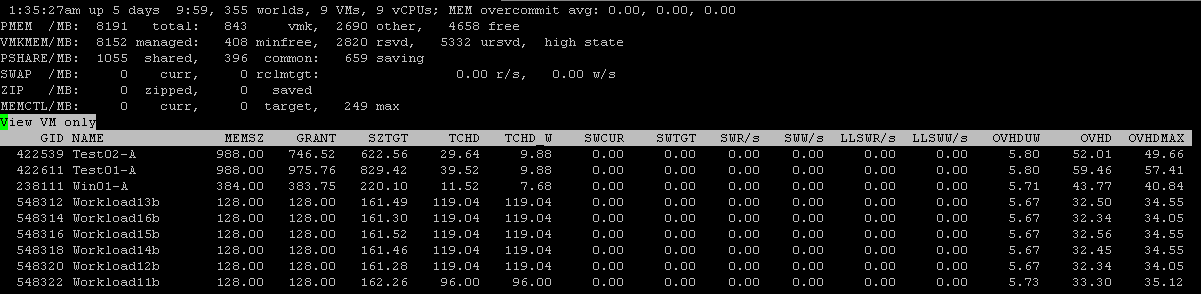
There are many useful things to look at when in the memory view of esxtop.

Several important things to look at near the top of the esxtop.

PMEM /MB – memory for the host

VMKMEM /MB – memory for the VMkernel

PSHARE /MB – ESXi page sharing statistics

SWAP /MB – ESXi swap usage statistics

ZIP /MB – ESXi compression statistics

MEMCTL /MB – ESXi balloon statistics

Now looking at the virtual machines down below host information, you can see several counters listed that can be of use when troubleshooting an individual VM or group of VMs:

MEMSZ – amount of configured guest physical memory

GRANT – amount of guest physical memory granted

SZTGT – amount of memory to be allocated to a machine

TCHD – amount of guest physical memory recently used by the VM

TCHD_W – write working set estimate for a resource pool

SWCUR – current swap usage

SWTGT – expected swap usage

SWR/s – swap in from disk rate

SWW/s – swap out to disk rate

LLSWR/s – memory read from host cache rate

LLSWW/s – memory write to host cache rate

OVHDUW – overhead memory reserved for the vmx user world of a VM group.

OVHD – amount of overhead currently consumed by a VM

OVHDMAX – amount of reserved overhead memory for a VM

Ideally, you’ll look at esxtop and never see any kind of numbers for balloon, compression or swap activity. However if you do see this activity then the ESXi host is overcommitted and is in contention. More resources need to be added the the ESXi host, the cluster or some of the VMs need to be moved to an ESXi host with memory resources available.

esxtop CPU View

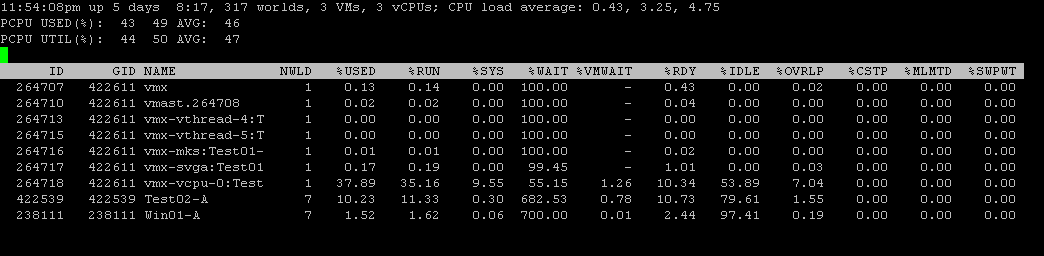
The default view of esxtop is CPU, there are several useful counters in this view.

GID – group ID

NAME – virtual machine name

NWLD – number of worlds

%USED – percentage physical CPU time accounted to this world

%RUN – percentage of total scheduled time for the world to run

%SYS – percentage of time spend by system services for that world

%WAIT – percentage of time spent by the world in a wait state

%VMWAIT – derivative of %WAIT except it doesn’t include %IDLE

%RDY – percentage of time the world was ready to run

%IDLE – percentage of time the vCPU world is in idle loop

%OVRLP – percentage of time spend by system services on behalf of other worlds

%CSTP – percentage of time the world spend in ready, co-deschedule state (only relevant to SMP VMs)

%MLMTD – percentage of time world was ready to run but was not scheduled because that would violate “CPU limit” settings

%SWPWT – percentage of time the world is waiting for the VMkernel swapping memory

High CPU ready time is a major indicator of CPU performance issues, you may have excessive usage of vSMP or a limit set (check %MLMTD for that). Another metric to check is %CSTP, this will help you determine whether you can decrease the amount of vCPUs for some of the virtual machines which will help with improving scheduling opportunities.

%SYS is usually caused by high IO virtual machine. %SWPWT is usually caused by memory overcommitment.

esxtop Network View

The last post discussed navigating esxtop, now let’s get into each view a little bit more.

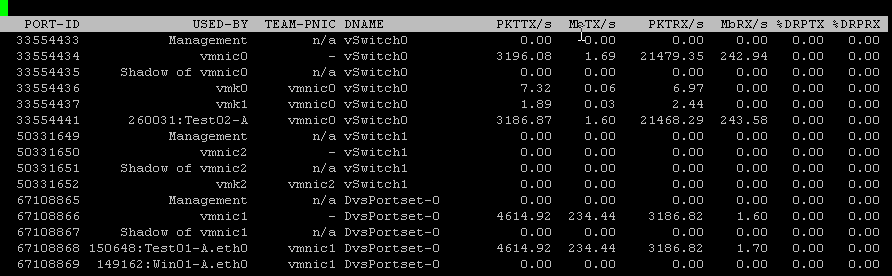
There are several network counters that are default when you go to the networking view, here’s a brief overview of each:

PKTTX/s – # of packets transmitted per second

MbTX/s – MegaBits transmitted per second

PKTRX/s – # of packets received per second

MbRX/s –  MegaBits received per second

%DRPTX – percentage of transmit packets dropped

%DRPRX – percentage of receive packets dropped

A major indicator of potential network performance issues is dropped packets. This can be indicative of a physical device failing, queue congestion, bandwidth issues, etc.

Something else to check when having network issues is high CPU usage, the CPU Ready Time counter (%RDY) can be beneficial when diagnosing CPU issues.

If you are having these issues in your environment, consider using jumbo frames, taking advance of hardware features provided by the NIC like TSO (TCP Segmentation Offload) and TCO (TCP Checksum Offload)

Also, make sure to check out physical network trunks, interswitch links, etc for overloaded pipes.

Consider: moving the VM with high network demand to another switch, adding more uplinks to a virtual switch and check for which vNIC driver is being used.